
10 Essential Computer Skills Everyone Should Learn
Computers are now part of everyday life. People use them for education, work, communication, online shopping, banking, entertainment, and many other activities.
However, simply knowing how to turn on a computer and open a browser is not enough for many modern tasks.
Basic computer skills can help you work more efficiently, protect your personal information, organize your files, and solve common problems without depending on someone else every time something goes wrong.
You do not need to become a programmer or computer expert to develop useful technology skills.
In this guide, we will cover 10 essential computer skills that are valuable for students, office workers, freelancers, business owners, and everyday computer users.
Why Are Computer Skills Important?
Computer skills can save time and make everyday tasks easier.
Someone who understands basic file management, keyboard shortcuts, online security, software installation, and troubleshooting can often complete tasks much faster than someone who relies entirely on others.
Good computer skills can also help you:
- Work more efficiently
- Organize important files
- Protect your accounts
- Avoid common online scams
- Communicate professionally
- Troubleshoot basic problems
- Use productivity software
- Manage digital information
- Learn new technologies more easily
The goal is not to memorize every computer feature. It is to understand the basic concepts that you can apply in different situations.
1. File and Folder Management
One of the most useful computer skills is knowing how to organize files properly.
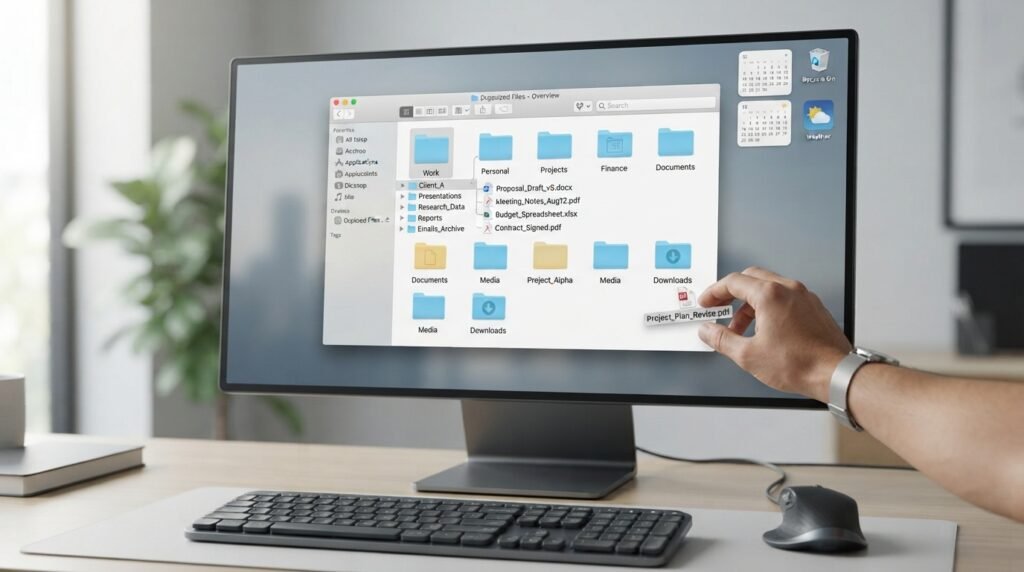
Many people save documents, images, downloads, and other files in random locations. Over time, finding a specific file can become difficult.
Create a Logical Folder Structure
Instead of keeping everything in one folder, organize files according to their purpose.
For example:
Documents
├── Work
├── Personal
├── Projects
└── Finance
You can create additional folders inside these categories when necessary.
Use Descriptive File Names
Avoid names such as:
document1.docx
newfile.pdf
image123.jpg
Instead, use names that tell you what the file contains.
For example:
Website-Content-Plan.docx
January-Budget.xlsx
Project-Report.pdf
A consistent naming system makes files much easier to find later.
Learn Basic File Operations
You should be comfortable with:
- Creating folders
- Renaming files
- Copying files
- Moving files
- Deleting files
- Restoring files from the recycle bin
- Searching for files
- Compressing and extracting files
These simple skills are useful on almost every computer.
2. Keyboard Shortcuts
Keyboard shortcuts can make everyday computer work much faster.
Instead of repeatedly opening menus with a mouse, you can perform many common actions using a few keys.
Useful Windows Keyboard Shortcuts
| Shortcut | Function |
| Ctrl + C | Copy |
| Ctrl + X | Cut |
| Ctrl + V | Paste |
| Ctrl + Z | Undo |
| Ctrl + Y | Redo |
| Ctrl + A | Select all |
| Ctrl + S | Save |
| Ctrl + F | Find |
| Ctrl + P | |
| Alt + Tab | Switch between open applications |
| Windows + E | Open File Explorer |
| Windows + L | Lock the computer |
| Ctrl + Shift + Esc | Open Task Manager |
You do not need to memorize dozens of shortcuts at once.
Start with the shortcuts you use most often and gradually add more.
Why Keyboard Shortcuts Matter
Keyboard shortcuts can help you:
- Work faster
- Reduce repetitive mouse movements
- Navigate applications efficiently
- Edit documents more quickly
- Switch between applications
They are particularly useful for people who work with computers for several hours every day.
3. Internet and Web Browsing Skills
Using the internet effectively is more than opening a browser and typing a search query.
Good browsing skills help you find reliable information and avoid suspicious websites.
Learn How to Search Effectively
Use specific search terms instead of very broad queries.
For example, instead of searching:
computer problem
you could search:
Windows 11 Bluetooth not connecting
A more specific search can produce more useful results.
Check Information Before Trusting It
Not everything published online is accurate.
When researching an important topic, consider:
- Who published the information?
- When was it published or updated?
- Does the source provide evidence?
- Do reliable sources agree?
- Is the website trying to sell something?
- Does the information appear exaggerated?
Developing these habits can help you avoid misinformation.
Understand Browser Tabs
You should know how to:
- Open a new tab
- Close a tab
- Reopen a recently closed tab
- Switch between tabs
- Bookmark useful pages
- Download files safely
- Clear browsing data when appropriate
These are small skills, but they make web browsing much easier.
4. Password and Account Security
Online security is one of the most important computer skills today.
Weak or reused passwords can make multiple accounts vulnerable if one password is exposed.
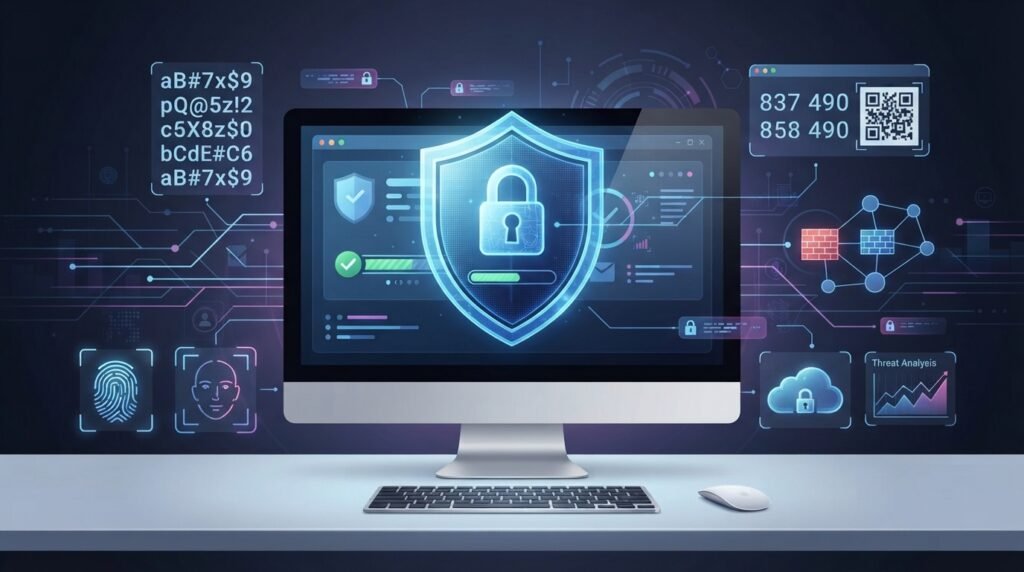
Create Strong Passwords
A good password should be difficult for others to guess.
Avoid using easily predictable information such as:
- Your name
- Birthday
- Phone number
- Simple sequences
- Common words
- The same password everywhere
For important accounts, use unique passwords.
Use a Password Manager
A password manager can help you create and store unique passwords without requiring you to memorize every password.
Instead of remembering dozens of passwords, you typically need to protect one main password or authentication method for the password manager.
Enable Multi-Factor Authentication
Multi-factor authentication, often called MFA, adds another verification step to an account.
Depending on the service, this may involve:
- Authentication apps
- Security keys
- One-time codes
- Other verification methods
MFA can provide additional protection even if someone obtains your password.
5. Recognizing Phishing and Online Scams
Being able to identify suspicious messages is an essential digital skill.
Phishing attempts often try to convince you to:
- Click a malicious link
- Enter your password
- Provide financial information
- Download a dangerous file
- Share a verification code
- Make an urgent payment
Common Warning Signs
Be cautious when a message:
- Creates unnecessary urgency
- Requests sensitive information
- Contains an unexpected attachment
- Uses a suspicious link
- Claims your account will immediately be closed
- Contains unusual spelling or formatting
- Comes from an unexpected sender
Do not assume a message is legitimate simply because it contains a familiar logo or company name.
Check Links Carefully
Before clicking an important link, check where it leads.
If you receive an unexpected security message, consider opening the company’s official website directly rather than using the link in the message.
6. Basic Software Installation and Updates
You should understand how to install, update, and remove software safely.
Download Software From Trusted Sources
Whenever possible, obtain applications from:
- Official developer websites
- Official app stores
- Trusted software repositories
Avoid downloading programs from suspicious websites that bundle unknown applications or display aggressive advertisements.
Keep Important Software Updated
Updates can include:
- Security fixes
- Bug fixes
- Compatibility improvements
- New features
- Performance improvements
Keeping your operating system and important applications updated can reduce security and compatibility problems.
Uninstall Unused Software
If you no longer need an application, consider uninstalling it.
This can free storage space and reduce unnecessary software on your system.
7. Basic Computer Troubleshooting
You do not need to be an IT professional to solve many common computer problems.
A simple troubleshooting process can save time.
Restart the Computer
Restarting is one of the first steps worth trying when a computer behaves unexpectedly.
It can clear temporary problems and restart system processes.
Check Connections
For hardware problems, check:
- Power cables
- USB connections
- Display cables
- Network connections
- External devices
A loose cable can sometimes cause a problem that appears much more complicated than it really is.
Check Task Manager
On Windows, Task Manager can show CPU, memory, disk, network, and application activity.
If the computer is unusually slow, it can help identify a resource-intensive application.
Search for the Exact Error
If you receive an error message, write down the exact wording and search for it.
Avoid relying only on vague descriptions such as:
My computer doesn’t work.
A specific error message can provide much more useful troubleshooting information.
8. Backup and Data Recovery
Knowing how to back up important files is an essential computer skill.
A hardware failure, accidental deletion, malware incident, or other problem can result in data loss.
What Should You Back Up?
Consider backing up important:
- Documents
- Photos
- Videos
- Work files
- School projects
- Financial records
- Personal projects
- Other irreplaceable data
Different Backup Options
| Backup Method | Example Use |
| External drive | Local backup |
| Cloud storage | Off-device backup and synchronization |
| Network storage | Centralized home or office backup |
| Multiple backup locations | Additional protection against data loss |
For particularly important information, having more than one backup copy is a good practice.
Do Not Confuse Synchronization With Backup
Synchronization keeps files consistent across devices or locations, but it does not necessarily protect against every type of data loss.
For example, if a file is deleted and that deletion synchronizes across devices, you may still need a separate backup to recover it.
Understanding this difference is important.
9. Basic Document and Spreadsheet Skills
Many jobs and educational tasks require document and spreadsheet software.
You should be comfortable with basic features such as:
- Creating documents
- Formatting text
- Using headings
- Creating tables
- Adding images
- Saving files
- Exporting documents
- Creating spreadsheets
- Entering formulas
- Sorting data
- Filtering information
- Creating simple charts
Why Spreadsheet Skills Matter
Spreadsheets are useful for:
- Budgets
- Lists
- Sales records
- Project tracking
- Data analysis
- Scheduling
- Inventory
You do not need to become an advanced spreadsheet expert to benefit from them.
Learning basic formulas, sorting, filtering, and formatting can already make many tasks easier.
10. Basic Privacy and Security Awareness
Understanding digital privacy is increasingly important.
Every website, application, and online service may handle information differently.
Before giving an application access to something, ask whether the permission is actually necessary.
Review App Permissions
Depending on your device and operating system, applications may request access to:
- Camera
- Microphone
- Location
- Contacts
- Photos
- Files
- Notifications
Review these permissions periodically.
If an application requests access that does not seem relevant to its function, investigate why it needs that permission.
Use Secure Connections
When entering sensitive information online, make sure you are using the legitimate website and a secure connection.
However, the presence of a padlock or HTTPS alone does not prove that a website is trustworthy. A fraudulent website can also use HTTPS.
Always check the domain and the context of the website.
Bonus Skill: Learn Basic Cloud and Online Collaboration Tools
Cloud-based tools are increasingly common in education and workplaces.
You may need to:
- Share documents
- Collaborate on files
- Manage permissions
- Attend online meetings
- Store files online
- Communicate through team platforms
Understanding basic cloud concepts can make remote work and collaboration easier.
How to Improve Your Computer Skills
You do not need to learn all these skills in one day.
A practical learning approach is to choose one skill at a time.
Start With Everyday Tasks
For example:
Week 1: File and folder organization
Week 2: Keyboard shortcuts
Week 3: Internet searching
Week 4: Password security
Week 5: Software installation and updates
After learning the basics, practice them during your normal computer use.
Practice Is More Important Than Memorization
You do not need to memorize every command or shortcut.
The goal is to understand what a feature does and know where to find it when you need it.
For example, if you understand how file paths and folders work, you can usually figure out how to locate a file even when using a different computer.
Computer Skills for Students
Students can benefit from computer skills in many ways.
Important areas include:
- Researching information online
- Writing and formatting assignments
- Creating presentations
- Managing files
- Using spreadsheets
- Backing up projects
- Protecting online accounts
- Collaborating on documents
Good organization is particularly important when managing multiple assignments and projects.
Computer Skills for Office Workers
Office workers often need a broader set of practical skills.
These may include:
- Professional email communication
- Document formatting
- Spreadsheet management
- File organization
- Video conferencing
- Cloud collaboration
- Basic troubleshooting
- Password security
Being comfortable with these tasks can improve productivity and reduce unnecessary interruptions.
Computer Skills for Freelancers and Remote Workers
Remote workers often depend heavily on digital tools.
Useful skills include:
- Cloud file management
- Online collaboration
- Video conferencing
- Digital security
- File sharing
- Backup management
- Basic troubleshooting
- Task and project organization
Because remote workers may not have immediate access to an IT support team, basic troubleshooting skills can be especially valuable.
Common Computer Mistakes to Avoid
Learning computer skills also means knowing what not to do.
Avoid these common mistakes:
- Using the same password everywhere
- Ignoring software updates
- Downloading unknown programs
- Clicking suspicious links
- Keeping important files in only one location
- Installing unnecessary “PC optimizer” software
- Sharing verification codes
- Opening unexpected attachments
- Using unclear file names
- Giving every application unnecessary permissions
Small habits can have a significant impact on security and productivity.
A Simple Computer Skills Checklist
Use this checklist to see which areas you already understand.
| Skill | Beginner Goal |
| File management | Create, move, rename, and find files |
| Keyboard shortcuts | Know common shortcuts |
| Web browsing | Search and evaluate information |
| Password security | Use unique passwords and MFA |
| Phishing awareness | Identify suspicious messages |
| Software management | Install, update, and uninstall safely |
| Troubleshooting | Solve simple computer problems |
| Backups | Protect important files |
| Office software | Create documents and basic spreadsheets |
| Privacy | Understand permissions and basic privacy practices |
You do not need to master everything immediately.
Improving one skill at a time can make a noticeable difference.
Frequently Asked Questions (FAQs)
What are basic computer skills?
Basic computer skills include managing files, using keyboard shortcuts, browsing the internet, installing software, protecting accounts, creating documents, using spreadsheets, performing backups, and troubleshooting common problems.
Which computer skill should I learn first?
File management and basic operating-system navigation are good starting points. Once you understand how your computer organizes files and applications, other skills become easier to learn.
Are computer skills important for jobs?
Yes. Many modern jobs require employees to use computers for communication, documents, spreadsheets, research, data management, collaboration, or specialized software.
How can I improve my computer skills?
Practice one skill at a time during your normal computer use. Online tutorials, documentation, practice projects, and repeated hands-on use can help you build confidence.
What keyboard shortcuts should beginners learn?
Start with common shortcuts such as Ctrl + C, Ctrl + V, Ctrl + X, Ctrl + Z, Ctrl + S, Ctrl + F, Ctrl + A, and Alt + Tab.
Why is file organization important?
A good file structure makes it easier to find documents, reduces confusion, and helps you manage large amounts of digital information.
How can I protect my online accounts?
Use unique passwords, consider a password manager, enable multi-factor authentication, keep software updated, and avoid entering credentials through suspicious links.
What should I do if my computer becomes slow?
Start by checking Task Manager, restarting the computer, closing unnecessary applications, checking available storage, reviewing startup programs, and checking for updates or security problems.
How often should I back up my files?
The ideal frequency depends on how often your data changes and how important it is. Important files should be backed up regularly rather than only when a problem occurs.
Do I need to know programming to have good computer skills?
No. Programming is a specialized skill. You can become highly capable at everyday computer use without learning how to program.
Are cloud skills important?
Yes. Cloud-based storage, collaboration, communication, and business applications are widely used, so understanding basic cloud concepts can be useful for both personal and professional work.
Conclusion
Computer skills are no longer optional for many areas of modern life.
You do not need to become a programmer or technology expert to become confident with computers. Learning practical skills such as file management, keyboard shortcuts, internet research, password security, phishing awareness, software management, troubleshooting, backups, office applications, and privacy can make everyday digital tasks much easier.
The best way to improve is through regular practice. Start with the skills you use most often, learn how they work, and gradually move toward more advanced topics.
Technology will continue to change, but strong fundamental computer skills give you a foundation that can help you adapt to new software, devices, and digital services in the future.