
SSD vs HDD: What’s the Difference and Which One Should You Choose?
Storage is one of the most important parts of a computer. It is where your operating system, applications, documents, photos, videos, games, and other files are kept.
When choosing a computer or upgrading an existing one, you will often come across two main storage technologies: SSD and HDD.
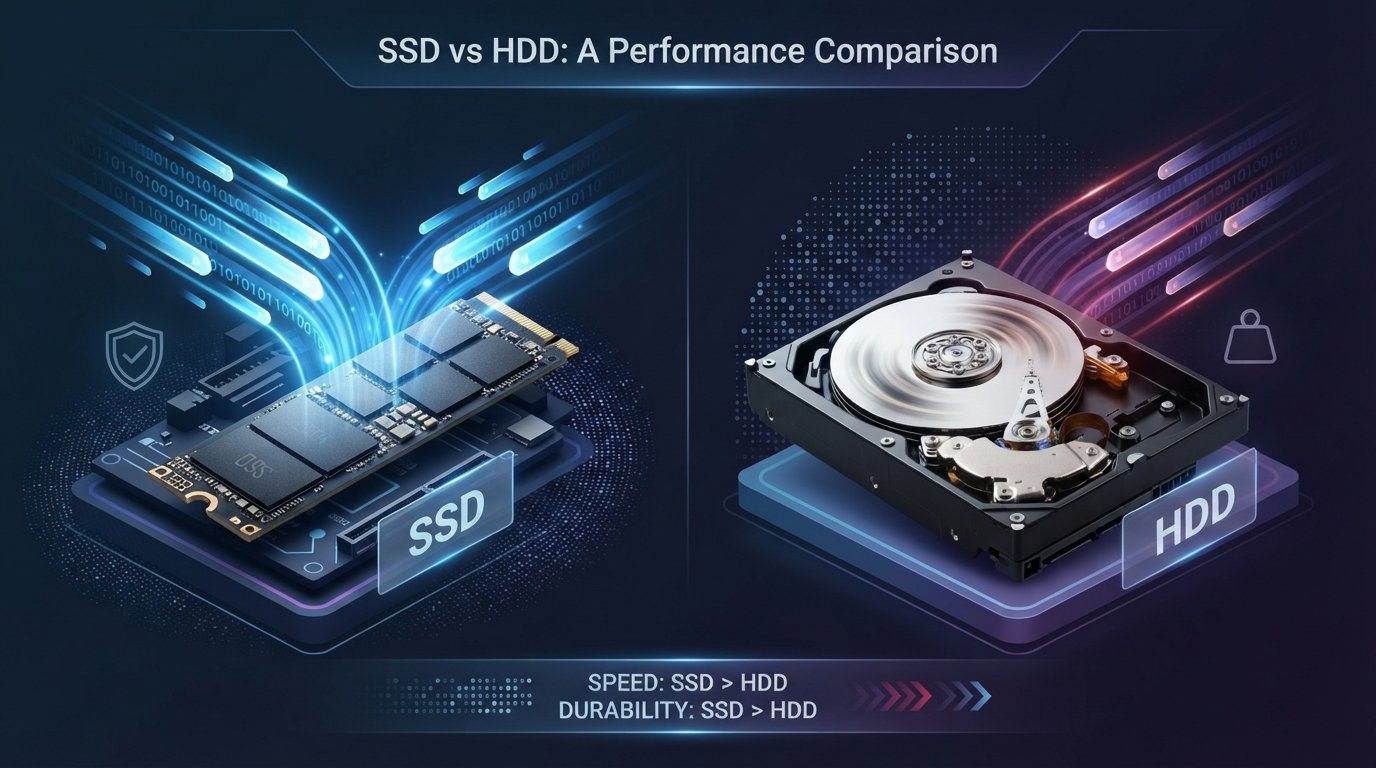
An SSD (Solid-State Drive) uses flash memory to store data, while an HDD (Hard Disk Drive) uses spinning magnetic disks and a mechanical read/write head.
Both can store your files, but they work differently and offer different levels of performance, durability, capacity, and cost.
For most modern computers, an SSD is the better choice for the operating system and everyday applications. However, HDDs can still make sense when you need a large amount of storage at a lower cost.
In this guide, we will compare SSD vs HDD, explain how both technologies work, look at their differences in speed, durability, storage capacity, price, power consumption, and noise, and help you decide which one is right for your needs.
What Is an HDD?
HDD stands for Hard Disk Drive.
An HDD stores data magnetically on spinning disks called platters. A mechanical arm with a read/write head moves across the platters to read and write information.
Because an HDD contains moving mechanical parts, its performance depends partly on the speed at which the platters rotate and how quickly the mechanical components can access data.
HDDs have been used in computers for decades and remain available in a wide range of capacities.
How Does an HDD Work?
Inside a traditional HDD, several components work together.
The main components include:
- Magnetic platters
- Spindle motor
- Read/write heads
- Actuator arm
- Controller electronics
When you save a file, the drive records the information magnetically on its platters.
When you open the file later, the read/write head moves to the appropriate location and reads the stored information.
This mechanical process is one of the main reasons HDDs are slower than SSDs.
What Is an SSD?
SSD stands for Solid-State Drive.
Unlike an HDD, an SSD does not use spinning platters or mechanical read/write heads.
Instead, it stores data using flash memory.
Because an SSD has no moving mechanical components, it can access data much faster and generally responds more quickly to operating-system and application requests.
SSDs are now common in laptops, desktops, gaming computers, and many other devices.
How Does an SSD Work?
An SSD stores data in flash memory cells.
A controller manages how data is stored, retrieved, and organized across the drive.
Because there are no mechanical parts that need to physically move to a particular location, an SSD can access many types of data much more quickly than a traditional HDD.
This is especially noticeable when:
- Starting Windows
- Opening applications
- Loading games
- Searching through files
- Copying certain types of data
- Performing many small storage operations
SSD vs HDD: Main Differences
The biggest differences between SSDs and HDDs involve their technology, performance, durability, capacity, and price.
| Feature | SSD | HDD |
| Storage technology | Flash memory | Magnetic platters |
| Moving parts | No | Yes |
| Speed | Generally much faster | Generally slower |
| Noise | Silent | Can produce mechanical noise |
| Durability | Generally more resistant to physical shock | More sensitive to physical impact |
| Power consumption | Usually lower | Usually higher |
| Large capacities | Available, but often more expensive | Usually cheaper per GB |
| Boot time | Usually faster | Usually slower |
| Application loading | Usually faster | Usually slower |
| Best use | OS, apps, gaming, everyday computing | Bulk storage and backups |
The exact performance and characteristics depend on the specific drive.
SSD vs HDD Speed
Speed is one of the biggest reasons people choose SSDs.
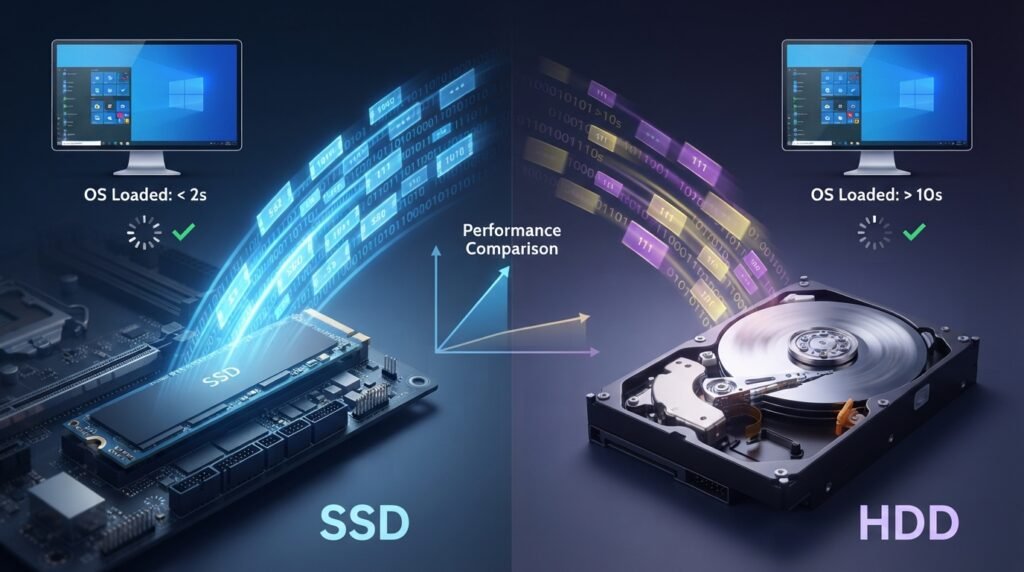
An SSD can access data much faster than a traditional HDD because it does not need to physically move a read/write head across a spinning disk.
Why Does SSD Feel Faster?
The difference is especially noticeable during everyday tasks.
For example, an SSD can make a computer feel more responsive when:
- Booting the operating system
- Opening programs
- Launching games
- Loading large projects
- Searching files
- Installing software
- Performing multiple storage operations
A computer with an SSD may feel significantly more responsive even if its processor and RAM remain unchanged.
Does an SSD Make the CPU Faster?
No.
An SSD does not increase the clock speed or processing capability of your CPU.
Instead, it reduces storage-related delays.
If your computer was previously waiting for a slow HDD to load data, replacing it with an SSD can make those operations much quicker.
SSD vs HDD for Gaming
Storage can affect the gaming experience, particularly during installation and loading.
SSD for Gaming
An SSD can provide:
- Faster game launches
- Shorter loading times
- Faster installation in some situations
- Faster loading of game assets
Modern games can contain very large amounts of data, so storage performance can matter more than it did in older games.
However, an SSD does not automatically increase your game’s frame rate.
Your CPU, GPU, RAM, game settings, and other hardware remain important factors for FPS.
HDD for Gaming
An HDD can still run many games, particularly older or less demanding titles.
However, loading times may be longer compared with an SSD.
If you have limited SSD space, one practical approach is to keep frequently played games on the SSD and store less frequently used games on a larger HDD.
SSD vs HDD for Laptops
SSDs are particularly useful in laptops.
Because SSDs do not have spinning platters or mechanical heads, they are generally better suited to devices that are frequently moved.
An SSD can also help reduce noise and may consume less power than a traditional HDD, although actual battery impact varies by hardware and workload.
Why SSDs Are Good for Laptops
An SSD can provide:
- Faster startup
- Faster application loading
- Better resistance to movement and shock
- Silent operation
- Lower mechanical complexity
For a new laptop, an SSD is generally the preferred storage option.
SSD vs HDD for Desktop PCs
Both technologies can be useful in desktop computers.
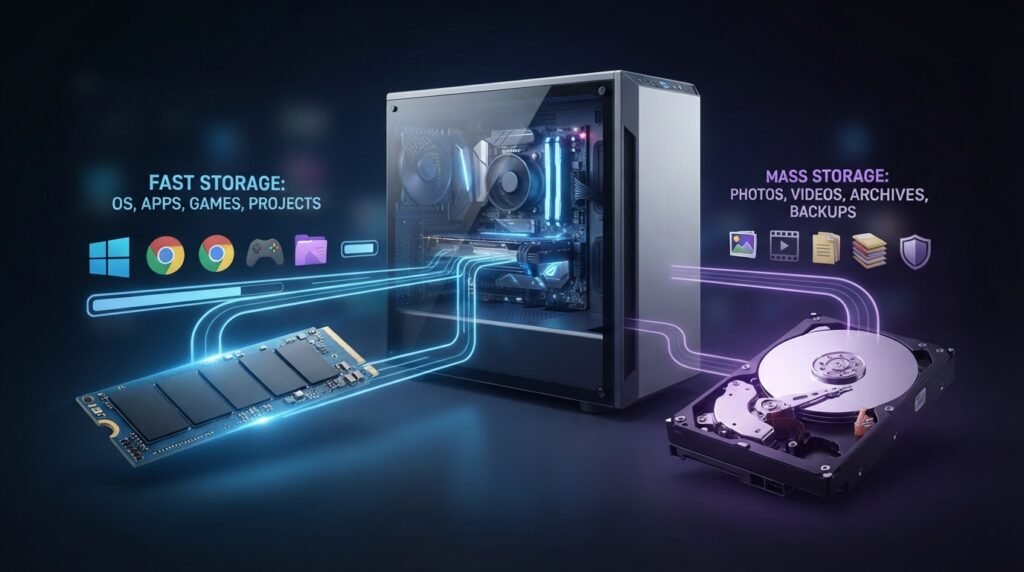
A common setup is:
SSD + HDD
The SSD can be used for:
- Windows
- Frequently used applications
- Games
- Current projects
The HDD can be used for:
- Large media collections
- Archives
- Older files
- Backups
- Other data that does not require fast access
This combination can provide a balance between speed and storage capacity.
SSD vs HDD Durability
SSDs and HDDs have different physical designs.
SSD Durability
SSDs have no spinning disks or moving read/write heads.
This means they are generally less vulnerable to damage from physical movement and shock than mechanical HDDs.
However, SSDs are not indestructible.
Flash memory has finite write endurance, and SSDs can eventually wear out depending on the drive, workload, and amount of data written over time.
HDD Durability
HDDs contain moving mechanical parts.
A strong physical impact while the drive is operating can potentially damage the mechanism or platters.
This is one reason traditional HDDs require more care when being transported.
SSD vs HDD Lifespan
It is difficult to say that one technology always lasts longer.
The lifespan of a storage drive depends on factors such as:
- Drive quality
- Workload
- Operating temperature
- Amount of data written
- Physical conditions
- Power conditions
- Manufacturing quality
SSDs have write-endurance specifications, while HDDs can experience mechanical wear and other failures.
The important lesson is simple:
Neither SSDs nor HDDs should be treated as a replacement for backups.
A drive can fail unexpectedly regardless of its technology.
SSD vs HDD Storage Capacity
HDDs have traditionally offered large capacities at relatively low prices.
SSDs are also available in large capacities, but higher-capacity SSDs can cost more depending on the model and market.
If you need several terabytes of storage mainly for files that you access occasionally, an HDD can be a cost-effective option.
If performance is more important than maximum capacity per dollar, an SSD is usually more attractive.
SSD vs HDD Price
Price varies by capacity, technology, interface, brand, and market.
In general:
HDD → Lower cost per GB
SSD → Higher cost per GB
This makes HDDs useful for large collections of data.
For example, someone who needs several terabytes for videos, photographs, archives, or backups may choose HDD storage to keep costs manageable.
For a primary system drive, however, the performance advantage of an SSD often makes the additional cost worthwhile.
SSD vs HDD Power Consumption
SSDs generally use less power than mechanical HDDs because they do not need to spin platters or move mechanical components.
This can be beneficial in portable computers.
However, actual power consumption depends on the specific drive and workload, so the difference should not be assumed to be identical for every model.
SSD vs HDD Noise
An SSD operates silently because it has no moving mechanical components.
An HDD can produce sounds from:
- Spinning platters
- Head movement
- Startup and shutdown operations
For a quiet computer build, an SSD can therefore be a better choice.
Types of SSDs
Not all SSDs are identical.
Several SSD form factors and interfaces exist.
SATA SSD
SATA SSDs use the SATA interface and are commonly available in a 2.5-inch form factor.
They can provide a major performance improvement over traditional HDDs while using an interface supported by many older computers.
NVMe SSD
NVMe SSDs use the NVMe protocol and are commonly connected through PCI Express.
They can provide significantly higher performance than SATA-based storage, particularly for workloads that can take advantage of high storage throughput.
M.2 SSD
M.2 describes a physical form factor rather than automatically meaning a specific speed.
An M.2 drive can use different interfaces, including SATA or PCI Express/NVMe, depending on the particular drive and system.
This is important when buying an upgrade because an M.2 slot does not necessarily support every type of M.2 drive.
Which Is Better: SSD or HDD?
For most users, an SSD is the better choice for the primary drive.
It can make a computer feel considerably more responsive and can improve boot and application loading times.
However, an HDD can still be useful when you need large amounts of inexpensive storage.
Choose an SSD If You:
- Want faster Windows startup
- Want applications to open quickly
- Play modern games
- Use demanding software
- Want a quieter computer
- Use a laptop
- Want better resistance to physical movement
Choose an HDD If You:
- Need a lot of storage at a lower cost
- Store large amounts of rarely accessed data
- Need inexpensive archival storage
- Want additional storage alongside an SSD
Consider Both If You:
- Want fast system performance
- Need several terabytes of storage
- Have a desktop PC
- Want separate storage for applications and large files
A combined SSD and HDD setup can be a practical solution for many desktop users.
SSD vs HDD for Different Users
The best option depends on how you use your computer.
| User Type | Recommended Choice |
| Everyday laptop user | SSD |
| Student | SSD |
| Office worker | SSD |
| Gamer | SSD, with HDD for additional storage if needed |
| Video editor | SSD for active projects + large storage for archives |
| Photographer | SSD for active work + HDD for large archives/backups |
| Home user with many videos | SSD + HDD |
| Budget bulk-storage user | HDD |
| Professional workstation user | Fast SSD + additional storage based on workload |
These are general recommendations. Your specific workload and budget should determine the final choice.
Can You Replace an HDD With an SSD?
In many computers, yes.
If your computer currently uses an HDD, replacing it with a compatible SSD can be one of the most noticeable upgrades you can make.
Before buying one, check:
- Drive size
- Interface
- Connector compatibility
- Available physical space
- BIOS/UEFI support where relevant
- Operating-system migration requirements
For laptops, physical dimensions and connector compatibility are particularly important.
How to Upgrade From HDD to SSD
If your computer supports an SSD upgrade, the process generally involves:
- Choose a compatible SSD.
- Back up important files.
- Decide whether to clone the existing drive or perform a fresh Windows installation.
- Install the SSD.
- Configure the system to boot from the new drive.
- Verify that your files and applications work correctly.
- Keep the old drive only after confirming that important data has been safely transferred.
Cloning vs Fresh Installation
Cloning copies the existing system to the new drive.
This can save time because your applications and settings may remain in place.
A fresh installation starts with a clean Windows environment.
A fresh installation can be useful when the old Windows installation has accumulated unnecessary software or configuration problems.
Regardless of the method, create a reliable backup before beginning.
How to Keep Your SSD Healthy
Modern SSDs generally manage themselves well, but good storage habits are still important.
Keep Some Free Space
Avoid filling an SSD completely.
Leaving some free space can help the drive manage data efficiently and gives the operating system room for temporary files and updates.
Install Firmware Updates Carefully
SSD manufacturers may release firmware updates that address bugs or improve compatibility.
If you update firmware, follow the manufacturer’s instructions carefully and ensure important data is backed up.
Do Not Defragment an SSD Like an HDD
Traditional HDDs can benefit from defragmentation because of how their mechanical storage works.
SSDs use flash memory and should be managed differently.
Modern versions of Windows generally handle storage optimization automatically, so manual disk-optimization routines are usually unnecessary.
Do You Still Need HDDs?
Yes.
Although SSDs have become the preferred choice for primary storage, HDDs remain useful.
They can be especially practical for:
- Large media libraries
- Backups
- Archives
- Long-term file storage
- Desktop secondary storage
- Large datasets where maximum storage capacity matters more than speed
The fact that SSDs are faster does not make HDDs useless.
The Importance of Backups
One of the biggest mistakes people make is assuming that a high-quality storage drive cannot fail.
Any storage device can fail.
Important files should therefore exist in more than one location.
A backup strategy might include:
- A second local drive
- An external drive
- Cloud storage
- Another backup location
For especially important data, keeping more than one backup copy can reduce the risk of permanent data loss.
SSD vs HDD: Final Comparison
| Category | Better Choice |
| Overall speed | SSD |
| Windows boot time | SSD |
| Application loading | SSD |
| Gaming loading times | SSD |
| Laptop use | SSD |
| Physical shock resistance | SSD |
| Silent operation | SSD |
| Lower cost per GB | HDD |
| Very large inexpensive storage | HDD |
| Primary system drive | SSD |
| Bulk storage | HDD |
| Balanced desktop setup | SSD + HDD |
Frequently Asked Questions (FAQs)
Is an SSD better than an HDD?
For most everyday computing tasks, an SSD is better because it provides faster access to data, quicker boot times, faster application loading, and silent operation.
Is an HDD still worth buying?
Yes. HDDs can be useful when you need a large amount of storage at a relatively low cost, particularly for archives, backups, and large media collections.
Does an SSD make a computer faster?
An SSD can make a computer feel much faster and more responsive, particularly when the previous drive was a mechanical HDD. It does not increase the processing power of the CPU.
Is SSD better for gaming?
Generally, yes. An SSD can significantly reduce game loading times and improve the responsiveness of storage-heavy operations. It does not automatically increase FPS.
Which lasts longer, SSD or HDD?
Neither technology can be guaranteed to last longer in every situation. Drive lifespan depends on the specific hardware, workload, operating conditions, and other factors.
Can an SSD fail?
Yes. SSDs can fail just like other electronic storage devices. Important data should always be backed up.
Can I use an SSD and HDD together?
Yes. A desktop computer can use an SSD for Windows and frequently used applications while using an HDD for additional files and large storage collections.
Is NVMe SSD better than SATA SSD?
NVMe SSDs can offer substantially higher performance than SATA SSDs, particularly for workloads that can take advantage of higher throughput. However, the difference may be less noticeable during simple everyday tasks.
Is M.2 the same as NVMe?
No. M.2 describes a physical form factor. NVMe describes a storage protocol. An M.2 drive can use NVMe or, in some cases, SATA.
Should I replace my old HDD with an SSD?
If your computer is compatible, replacing an older HDD with an SSD can be one of the most effective upgrades for improving general system responsiveness.
How much SSD storage do I need?
The right capacity depends on your applications and files. For basic computing, a smaller SSD may be enough, while gamers, creators, and professionals may need significantly more storage.
Should I store backups on an SSD or HDD?
Either can be used for backups. HDDs are often attractive for large backup collections because of their lower cost per GB, while SSDs can be useful when backup speed, portability, or resistance to physical movement is important.
Conclusion
The choice between SSD vs HDD depends mainly on what you need from your storage.
For most modern computers, an SSD is the better choice for the primary drive because it provides faster performance, quicker startup, faster application loading, silent operation, and generally better resistance to physical shock.
HDDs still have an important role because they can provide large amounts of storage at a lower cost per gigabyte. They are particularly useful for backups, archives, media collections, and other data that does not need to be accessed constantly.
If your budget allows it, a combination of SSD + HDD can provide an excellent balance: use the SSD for Windows, applications, and frequently used files, and use the HDD for larger storage needs.
Most importantly, whichever storage technology you choose, keep important files backed up. A fast drive is useful, but protecting your data is even more important.