
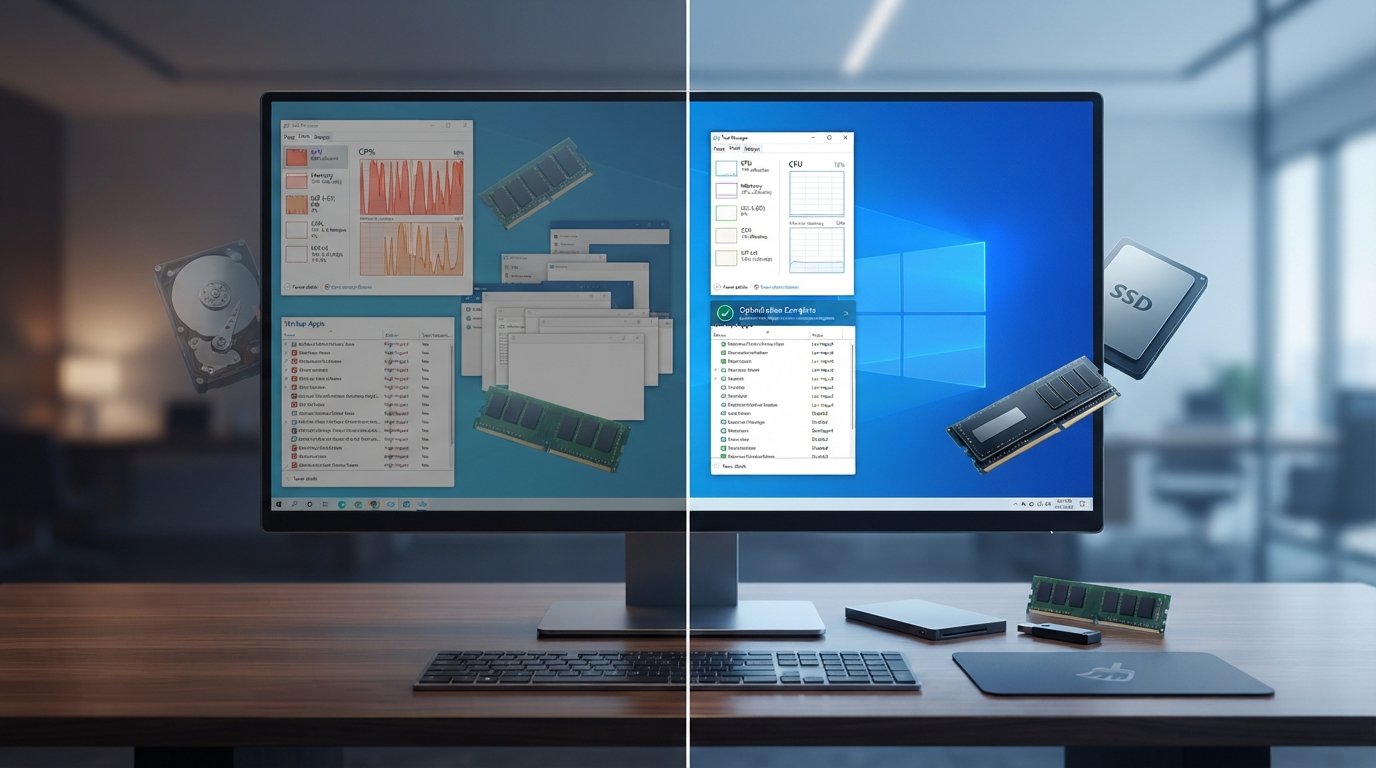
How to Speed Up a Slow Windows PC: 10 Easy and Effective Methods
A slow Windows PC can make even simple tasks frustrating. Applications may take longer to open, files can become difficult to manage, and switching between programs may feel sluggish.
A computer can become slower for many different reasons. Too many applications running in the background, limited storage space, outdated software, unnecessary startup programs, overheating, or aging hardware can all affect performance.
The good news is that you do not always need to buy a new computer to improve its speed.
In this guide, we will cover 10 practical ways to speed up a slow Windows PC, starting with simple changes that you can try yourself.
Why Does a Windows PC Become Slow?
There is no single reason why a computer becomes slow.
| Possible Cause | How It Can Affect Performance |
| Too many startup apps | Slows down the boot process |
| Low storage space | Leaves less room for Windows and applications to work efficiently |
| Too many background processes | Uses CPU and memory resources |
| Outdated software | May cause compatibility or performance problems |
| Malware | Can consume system resources or interfere with normal operation |
| Overheating | Can cause the processor to reduce its speed |
| Low RAM | Makes multitasking more difficult |
| Old hard drive | Can make booting and loading applications slower |
| Resource-heavy applications | Consume significant CPU, RAM, or disk resources |
Before making major changes, it is useful to identify what is actually causing the slowdown.
1. Restart Your Computer
It may sound simple, but restarting Windows can solve temporary performance problems.
When your computer runs for a long time, background processes, applications, and temporary system states can accumulate. A restart closes many of these processes and gives Windows a fresh session.
If your PC has suddenly become slow, try restarting it before changing advanced settings.
When Should You Restart?
Restarting can be particularly useful when:
- An application has stopped responding.
- Windows feels unusually sluggish.
- Memory usage remains high.
- A software update has recently been installed.
- Background processes are behaving unexpectedly.
A restart will not fix a hardware limitation or a permanently misconfigured system, but it is a useful first troubleshooting step.
2. Disable Unnecessary Startup Programs
Some applications automatically start when Windows boots.
Having too many startup applications can increase boot time and consume memory and CPU resources even when you are not actively using those programs.
How to Manage Startup Apps
On modern versions of Windows, you can review startup applications through Task Manager.
- Press Ctrl + Shift + Esc to open Task Manager.
- Select Startup apps.
- Review the applications listed.
- Check their startup impact.
- Disable applications you do not need to launch automatically.
Be careful when disabling startup items. If you do not recognize an application or system component, research it before turning it off.
Which Apps Can Usually Be Disabled?
Depending on your setup, you may not need every application to start automatically.
For example, a program that you only use occasionally may not need to launch every time Windows starts.
Disabling startup does not uninstall the application. You can still open it manually whenever you need it.
3. Free Up Storage Space
A nearly full drive can make managing files and installing updates more difficult.
Windows includes built-in tools that can help you identify and remove unnecessary files.
Use Windows Storage Settings
You can review storage usage through Windows Settings.
Look for categories such as:
- Temporary files
- Installed apps
- Documents
- Pictures
- Videos
- Downloads
- Other files
Remove files you no longer need, but check important folders carefully before deleting anything.
Clean Up Temporary Files
Temporary files can accumulate over time.
Windows provides built-in storage-management options that can help remove certain unnecessary temporary data.
Before deleting files, review what Windows has selected so that you do not accidentally remove something you still need.
4. Uninstall Programs You Do Not Use
Unused applications take up storage space and may sometimes install background services or scheduled tasks.
If you have programs that you no longer use, uninstalling them can simplify your system.
How to Uninstall Unused Apps
- Open Settings.
- Go to Apps.
- Open the installed apps section.
- Review the list.
- Select an application you no longer need.
- Choose the uninstall option when available.
Avoid removing software simply because you do not recognize its name. Some hardware drivers and system components are important for Windows or your device.
5. Check Task Manager for Resource-Hungry Apps
Windows Task Manager is one of the most useful tools for diagnosing a slow PC.
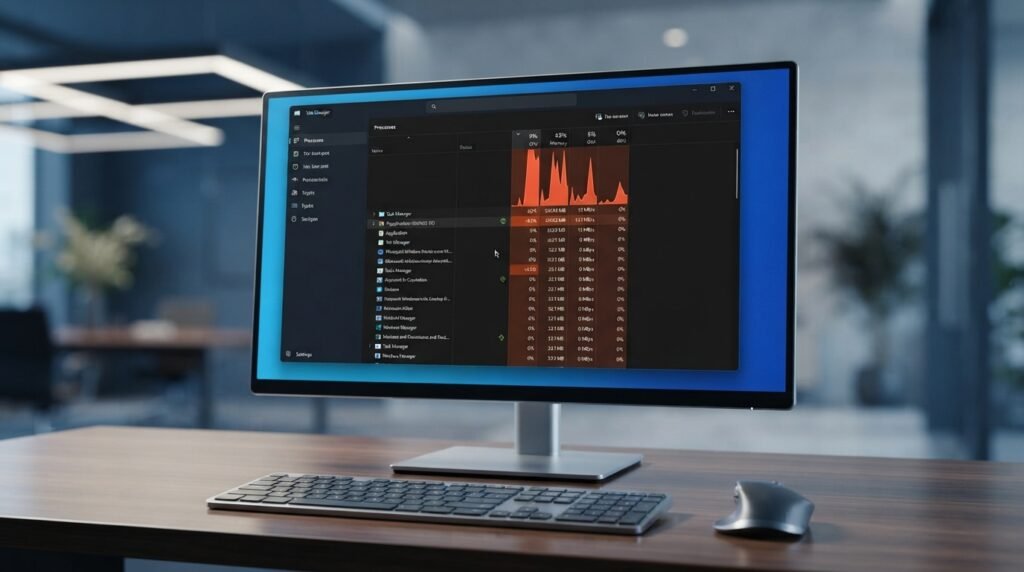
It can show how much of your system’s resources are being used.
| Resource | What It Represents |
| CPU | Processor activity |
| Memory | RAM usage |
| Disk | Storage drive activity |
| Network | Network activity |
| GPU | Graphics processor activity |
How to Use Task Manager
Press:
Ctrl + Shift + Esc
Then look at the CPU, Memory, Disk, and GPU columns.
If one application is consistently consuming a very large amount of a resource, investigate that application.
For example, a web browser with many open tabs can use a significant amount of memory.
Do not end a process simply because its name looks unfamiliar. Some Windows processes are essential to the operating system.
6. Reduce Unnecessary Background Activity
Some applications continue working in the background even when their windows are closed.
Examples can include synchronization tools, messaging applications, update utilities, and other services.
Reducing unnecessary background activity can free system resources.
Review Background Applications
Check which applications are configured to run automatically or remain active.
If you do not need an application running constantly, consider changing its settings or closing it when it is not required.
However, some background processes provide useful functions such as cloud synchronization, security protection, or notifications.
The goal is not to stop everything. The goal is to remove unnecessary activity.
7. Keep Windows and Drivers Updated
Software updates can include security fixes, bug fixes, compatibility improvements, and performance changes.
Keeping Windows updated can help avoid problems caused by outdated system components.
Check for Windows Updates
Open Windows Settings and look for the Windows Update section.
Install appropriate available updates and restart the computer if Windows requests it.
What About Drivers?
Drivers allow Windows to communicate with hardware components such as graphics cards, network adapters, audio devices, and storage controllers.
If you are experiencing a specific hardware-related problem, check for appropriate driver updates from your computer manufacturer or hardware manufacturer.
Avoid downloading drivers from random websites.
8. Scan for Malware
Malware can affect system performance by consuming resources, modifying system settings, or running unwanted background processes.
If your computer has suddenly become slow, especially along with unusual pop-ups, browser changes, unknown applications, or unexpected network activity, a security check is worthwhile.
Run a Security Scan
Use a reputable security solution and keep its definitions or components updated.
Windows includes built-in security features that can perform malware scans.
A scan may take some time, especially on systems with large amounts of data.
Signs That May Suggest a Security Problem
Possible warning signs include:
- Unexpected pop-ups
- Unknown applications
- Browser settings changing without permission
- Unusual CPU or network usage
- Frequent crashes
- Security software being disabled unexpectedly
These signs do not automatically mean malware is present, but they are worth investigating.
9. Check Whether Your PC Is Overheating
Heat can affect computer performance.
Modern processors can reduce their operating speed when temperatures become too high. This is commonly known as thermal throttling.
If your PC performs normally at first but becomes slower during demanding tasks, overheating could be one possible explanation.
Common Causes of Overheating
Overheating can be related to:
- Dust buildup
- Poor airflow
- Blocked ventilation
- Failing fans
- High ambient temperatures
- Heavy workloads
- Aging thermal components
Desktop computers should have adequate airflow around the case, while laptops should be used on appropriate hard surfaces rather than blocking their ventilation openings.
If you are not comfortable opening a computer, professional cleaning or inspection may be safer than attempting complicated hardware maintenance yourself.
10. Consider Upgrading the Hardware
Sometimes software adjustments can only do so much.
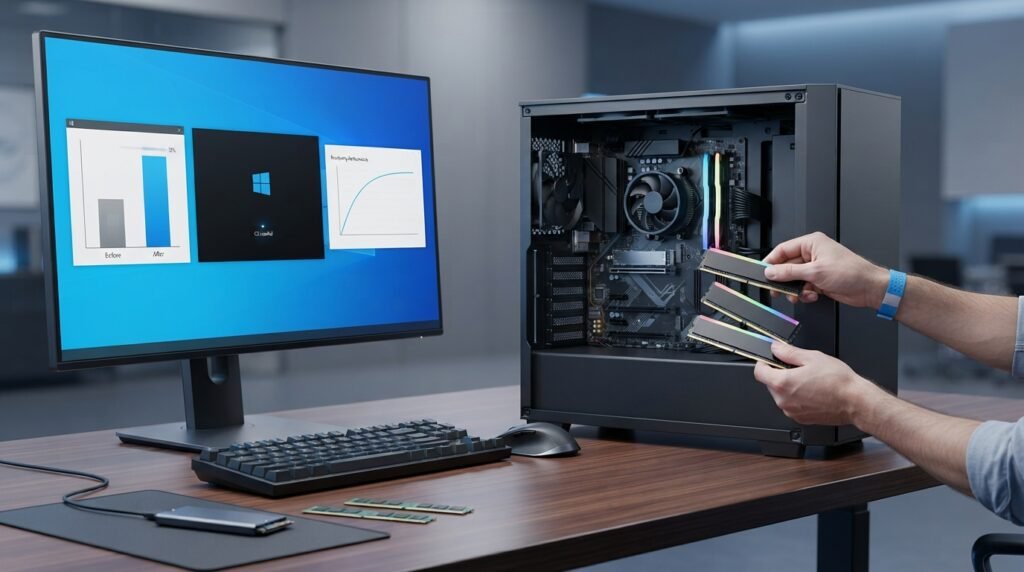
If your computer has older hardware, a hardware upgrade may provide a much larger improvement.
Upgrade to an SSD
If your Windows installation is running on a traditional mechanical hard disk, moving to an SSD can make a noticeable difference in boot times and application loading.
An SSD has no moving mechanical parts and generally provides much faster access to stored data than a traditional HDD.
Add More RAM
RAM affects how many applications and tasks your computer can comfortably handle at the same time.
If your PC frequently runs out of available memory, adding RAM may improve multitasking performance, provided the computer supports an upgrade.
Hardware Upgrade Comparison
| Upgrade | Potential Benefit | Best For |
| SSD | Faster boot and application loading | PCs using older HDDs |
| More RAM | Better multitasking | Systems frequently running low on memory |
| Newer CPU | Higher processing performance | CPU-intensive workloads |
| Newer GPU | Better graphics performance | Gaming and graphics workloads |
Before purchasing an upgrade, check your computer’s compatibility.
How to Find Out What Is Making Your PC Slow
Before changing multiple settings, try to identify the bottleneck.
Check CPU Usage
If CPU usage remains very high, an application or workload may be demanding significant processing power.
Check Memory Usage
If memory usage is consistently close to the system’s limit, you may have too little RAM for your workload or too many applications running simultaneously.
Check Disk Usage
High disk activity can happen for many reasons, including file transfers, updates, indexing, backups, or applications accessing large amounts of data.
If an older HDD frequently operates at high usage, storage performance may be contributing to the slowdown.
Check Temperature
If performance drops during demanding workloads and the computer becomes unusually hot, thermal problems may need investigation.
Things You Should Not Do to Speed Up Windows
Many websites recommend questionable “optimization” tricks.
Be careful with:
- Random registry cleaners
- Unknown PC optimization applications
- Unverified driver tools
- Disabling important Windows services without understanding them
- Deleting system files manually
- Installing multiple antivirus programs
- Changing advanced settings simply because an online guide recommends them
Some of these actions can cause instability rather than improving performance.
A simple, well-maintained Windows installation is usually better than a system filled with aggressive “optimization” tools.
Quick Windows Performance Checklist
If you want a simple starting point, follow this checklist:
- Restart the PC.
- Check Task Manager.
- Disable unnecessary startup applications.
- Remove unused programs.
- Free up storage space.
- Install Windows updates.
- Check important drivers when appropriate.
- Run a malware scan.
- Make sure ventilation is not blocked.
- Consider an SSD or RAM upgrade if the hardware is outdated.
You do not need to perform every possible optimization at once.
Start with the easiest changes and see whether performance improves.
When Should You Replace Your PC?
Sometimes a computer is simply too old for your current needs.
Consider replacement when:
- The hardware cannot support the software you need.
- Important components are failing.
- The computer cannot be upgraded enough to meet your requirements.
- Performance remains poor after basic troubleshooting.
- Repair costs are approaching the value of the machine.
If the PC still meets your needs and a simple upgrade such as an SSD or additional RAM can solve the problem, replacing the entire computer may not be necessary.
Frequently Asked Questions (FAQs)
Why is my Windows PC suddenly so slow?
A sudden slowdown can be caused by a background application, Windows update, malware, insufficient storage, high resource usage, overheating, or another temporary problem. Task Manager can help identify unusually high CPU, memory, or disk usage.
How can I speed up Windows without upgrading hardware?
Start by disabling unnecessary startup applications, removing unused software, freeing storage space, checking background processes, installing updates, and scanning for malware.
Does deleting files make a PC faster?
Freeing storage can help when a drive is nearly full, but deleting random files will not automatically make a computer faster. Focus on unnecessary files and use Windows’ built-in storage tools where appropriate.
Does adding RAM make Windows faster?
Adding RAM can improve performance when your computer regularly runs out of available memory. If RAM is not the bottleneck, adding more may have little effect.
Is an SSD better than an HDD?
For most modern Windows computers, an SSD provides significantly faster storage access than a traditional mechanical HDD. This can improve boot times and application loading.
Should I use a registry cleaner?
Generally, avoid unnecessary registry-cleaning utilities. They are not a reliable solution for general Windows performance problems and can potentially cause system issues if they make inappropriate changes.
How do I know which program is slowing down my PC?
Open Task Manager with Ctrl + Shift + Esc and review CPU, Memory, Disk, and GPU usage. Look for applications consistently consuming unusually high resources.
Can malware make a computer slow?
Yes. Some malware can consume CPU, memory, disk, or network resources and may cause other performance problems.
Can overheating slow down a PC?
Yes. When hardware becomes too hot, the processor or other components may reduce performance to control temperatures.
How often should I clean up my Windows PC?
There is no universal schedule. Review storage, startup applications, installed programs, updates, and security status periodically rather than relying on aggressive cleanup routines.
Conclusion
A slow Windows PC does not always mean that you need to buy a new computer.
Simple changes such as disabling unnecessary startup applications, freeing storage, removing unused software, checking Task Manager, updating Windows, and scanning for malware can improve performance in many situations.
If software changes do not solve the problem, hardware may be the limiting factor. Upgrading from an HDD to an SSD or adding compatible RAM can sometimes provide a much bigger improvement.
The most important step is to identify the actual cause of the slowdown before making major changes. Avoid questionable optimization tools and aggressive system tweaks that promise instant results.
With regular maintenance and the right hardware, a Windows PC can remain responsive and useful for many years.